


You have probably heard the same advice a thousand times: “To build a successful faceless channel, you need premium software.”
It is easy to get discouraged when every tutorial pushes a $49 monthly subscription for editing, another for voiceovers, and a third for SEO. Before you even upload your first video, you are already in the red.
But here is the truth most paid courses won’t tell you: you don’t need a massive budget to start. In fact, you don’t need a budget at all. You just need to know where to look.
In this blog, we will explain the best tools for YouTube automation that lets you start right away for free.
In this article, we’ll cover…
- Best tools For YouTube Automation (100% Free and Working)
- Tools to find ideas & keywords
- Tools for script writing
- Tools for voice generation
- Tools for video editing
- Tools for YouTube SEO
- Tools for thumbnails
- Tools for cross-posting & promotion
- Total Cost of YouTube Automation Using AI (Complete Breakdown)
- YouTube Automation FAQs: Everything You Need to Know
Best Tools For YouTube Automation (100% Free and Working)

Automation by tools is, so far, the most common and practical way to run an automated YouTube channel. It’s cost-effective, faster, and super-efficient.
Let’s look at some of the best tools for YouTube automation that can help you create professional content. But before diving deeper, here’s a TL;DR table for you.
TL;DR: Best Free YouTube Automation Tools
| Purpose | Best Tool | Alternative | Starting Price |
|---|---|---|---|
| Idea Generation | ChatGPT | TubePilot | Free |
| Script Writing | ChatGPT | Gemini | Free |
| AI Voiceovers | ElevenLabs | Clipchamp | Free (10 min/month) |
| Video Editing | CapCut | Adobe Premiere Pro | Free |
| AI Video Creation | InVideo AI | CapCut | Free (2 video min/month) |
| Titles & SEO | vidIQ | TubePilot | Free |
| Thumbnails | Canva | Gemini AI (Nano Banana) | Free |
| Cross-Posting | IFTTT | Zapier | Free |
Now, let’s take a closer look at the top 3 tools in each category, complete with quick demos and practical examples.
1. Idea Finding

ChatGPT
Before thumbnails, scripts, or editing, great automation starts with great ideas. That’s where ChatGPT becomes insanely useful. It lets you quickly generate:
✓ Video topic angles
✓ Viral-style formats
✓ Hook ideas
✓ Series concepts
✓ Trend-based variations
And the best part? You can steer it exactly the way you want with the right prompts.
Best ChatGPT Prompts For YouTube Video Idea Generation
Prompt 1:
“Act as a viral YouTube strategist. I’m in the [Niche, e.g., Personal Finance] niche. Analyze the current Browse trends on YouTube. Give me 5 Outlier video ideas that focus on high-curiosity gaps. For each idea, provide a Click-Triggers title (under 50 characters) and a hook that creates an Open Loop to keep viewers watching past 30 seconds.”
Prompt 2:
“I have a competitor channel [Competitor Name/Channel]. Their most popular video is [Title]. Don’t copy it. Instead, give me 3 ‘Counter-Intuitive’ angles on this topic that would appeal to the same audience but offer a fresh perspective they haven’t seen yet.”
Check out this YouTube video to see the generated output:

Alternatives and Additional Tools

- YouTube Studio: YouTube’s own Inspiration Tab (inside the Research section) is now smarter than ever. It shows you Content Gaps, that is, the topics people are searching for but can’t find high-quality videos on.


- TubePilot Niche Finder: If you are starting from scratch and don’t even have a niche yet, TubePilot is a lifesaver. It scans thousands of channels to find high-RPM (revenue per thousand views) niches that are faceless-friendly, along with many topic ideas.
YouTube Video Idea Generators Price Comparison
| Tools | Price |
| ChatGPT | Free And Unlimited (Paid plans: $8 – $200 per month) |
| YouTube Studio | Free |
| TubePilot | Free And Unlimited |
2. Script Generation

You can ask ChatGPT to write a full YouTube script based on your chosen niche and topic (e.g., a six-minute script about financial signs). It can churn out a complete script in about 30 seconds.

The quality of the output really depends on the depth of your input. If you provide a well-optimized prompt with a detailed outline of the content you expect, GPT will know exactly what to search for and will generate a better quality script. You can also use our free YouTube script outline generator before prompting!
Best ChatGPT Prompts For YouTube Video Script Generation
Act as a professional YouTube scriptwriter. For the title [INSERT TITLE], begin with a concise plan covering:
- Estimated Duration
- Tone & Viewer Experience
- Differentiation Strategy (how this video stands out and avoids typical finance content)
Then write the full script using the framework below:
1. Hook (0–30 seconds)
Open with a strong pattern interrupt: a surprising statistic, bold claim, or unresolved mystery. Immediately reinforce credibility with quick proof or context. End the hook with a clear value promise that gives viewers a compelling reason to continue watching.
2. Open Loops & Retention
Embed anticipation loops throughout the script to maintain curiosity and forward momentum. Use natural transitions such as:
- “But here’s where it gets interesting…”
- “Most people miss this part…”
- “The key mistake happens right here…”
Each segment should subtly lead into the next.
3. Main Body (Why / What / How)
Structure the content logically:
- Why – Establish importance, stakes, or common misconceptions
- What – Introduce the concept, idea, or problem
- How – Provide actionable steps, examples, or frameworks
Use Point Introductions for clarity and engagement:
Curiosity → Context → Reveal → Explanation
4. Engagement & Flow
Insert a pattern interrupt roughly every two minutes (brief story, analogy, or relatable example). Keep the language simple, conversational, and easy to follow (approx. 5th-grade reading level).
5. Conclusion (Hook → Curiosity → Action)
Avoid summarizing mechanically. Close by reinforcing the core insight, creating a curiosity gap, and leading naturally into one clear, specific CTA.
6. Post-Writing Quality Check
Ensure:
- Active voice
- Smooth transitions
- No generic or robotic phrasing
- Avoid clichés and common AI-isms (e.g., “delve,” “uncover”)
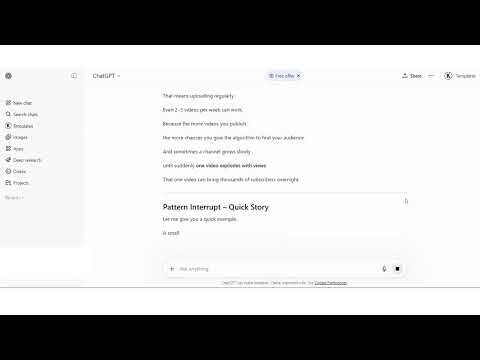
You’ll get an output like this:
Best Alternatives To ChatGPT For YouTube Video Script Generation
You can try out the alternative tools like:
- Google Gemini: Gemini (by Google) connects directly with Google Search and YouTube data, which means you get real-time info. However, it’s still catching up in creativity.
- DeepSeek: DeepSeek is a good option for those who prefer logic and technical accuracy. But the tone of replies is often criticized for being too formal.
- Claude: Many creators swear by Claude for faceless video essays because it has a much more human and poetic writing style.
- Grok: Created by xAI, Grok is the best trend hunter. Because it has real-time access to X (Twitter), it’s the best tool for scripts about viral news, internet drama, or anything currently trending on social media before it even hits the news.
- Poppy AI: Unlike a standard chatbot, Poppy AI uses a Visual Workspace (boards) where you can upload your past videos, PDFs, and reference links. It builds a Knowledge Base of your unique speaking style so the scripts don’t sound like AI.
You can also use tools like WriteSonic, Jasper AI, Vidiq, etc.
YouTube Video Idea Generators Price Comparison
| Tool | Price |
| ChatGPT | Free and Unlimited (Paid plans: $8 – $200 per month) |
| Gemini | Free and Unlimited (Paid plans: $7.99 – $250 per month) |
| DeepSeek | Free and Unlimited |
| Claude | Free and Limited (Paid Plans: $17 – $100) |
| Grok AI | Free and Unlimited (Paid Plans: $30 – $300) |
3. Voice Generation

Eleven Labs
ElevenLabs turns your text scripts into natural-sounding voiceovers using AI. The best part is that the platform offers a free plan for beginners to get started, where you can generate up to 10 minutes of text-to-speech.
Beyond text-to-speech, Eleven Labs also offers options:
✓ Change your voice to make it sound more professional
✓ Generate audio effects
✓ Voice isolator to remove all background noises
✓ Audio dubbing to almost 29 languages
✓ Generate music
However, commercial use of the generated music is strictly prohibited. That’s where LenosTube’s royalty-free track library comes in. It gives you access to many completely free tracks that you can use in your video without any copyright strikes. Try it out now!
How To Generate Audio With Eleven Labs?
- Paste the script into their text-to-speech section.

- On the right side, you can see hundreds of free voices available. You can play a preview of each and select the most realistic one.
- Fine-tune the speed, stability, similarity, and style exaggeration to make the voice more genuine. If you’re unsure, go on with default values.

- Hit the Generate Speech button.
- Within seconds, the generated audio will appear. Play it and once you’re satisfied, download it to your device.
Best Tools For YouTube Voiceover Generation
- Clipchamp
Owned by Microsoft, this is the best way to get decent AI voices for $0. It uses Azure’s neural voices (like “Stefan” or “Jenny”), which are surprisingly good for tutorials or simple faceless channels without needing a subscription. It’s best for creators who want speed and simplicity.
- Hugging Face Models
For creators running 10+ channels, ElevenLabs gets expensive. These require a bit of setup (deployment). But once they’re running, they are dirt cheap and offer infinite generation for massive video volumes.

Have a look at the best free open-source models available in HuggingFace:
| Model | Best For |
| Kokoro-82M | Ultra-fast generation that sounds surprisingly human for its tiny size. |
| XTTS-v2 | Give it a 6-second clip of your voice, and it mimics you perfectly. |
| Parler-TTS | You can describe the voice and it builds it. |
| Chatterbox | Great at conversational ‘umms’ and pauses that make it feel real. |
| Qwen3-TTS | The latest pro-grade model for crisp, studio-quality narration. |
YouTube Audio Generation Tools Pricing
| Tool | Pricing |
| Eleven Labs | Free Version With Limited Generations(Paid Plans: $5 – $9.99) |
| Clipchamp | Free Plan With Limited Features ($69.99 – $99.99 per year) |
| HuggingFace | Free Plan With Limited Features ($9- $50 per month) |
4. Video Editing

Capcut

CapCut (especially the Desktop version) is built for speed. It is now a powerhouse for 4K YouTube production. The best part? It has AI Intelligence baked into every button. Tasks that used to take hours now take one click.
Main Features

- Transcript-Based Editing: Instead of hunting through a timeline for a mistake, you just read the generated transcript. Delete a sentence in the text, and CapCut automatically deletes that section of the video. It’s literally editing by Control + X.

- Smart Background Remover: Want to put yourself or a product in a different world? One click removes the background of any video—no green screen required. It’s perfect for making those high-energy reaction clips or “Top 10” listicles.
- Voice Enhancement And Noise Reduction: Recorded in a noisy room? The Enhance Voice feature uses AI to clean up your audio, making a cheap $20 mic sound like a $500 studio setup.

- Retouch: It uses AI to smooth skin, brighten eyes, or even adjust facial structures in real-time. It’s really helpful for creators who want to appear on camera but don’t have professional studio lighting to hide imperfections.

- Camera Tracker: This feature allows you to pin text, stickers, or effects to a moving object in your video. The AI tracks the movement of the object perfectly, so your text follows it naturally across the screen. It’s the easiest way to add high-end motion graphics without needing to learn complex software like After Effects.
Best Tools For YouTube Video Generation
- Invideo
Invideo AI generates full-fledged videos in minutes from scripts or texts. It adds visuals, transitions, and stock footage to make your video look professional instantly. Here’s how it works:
- All you need to do is register an account with the platform. Soon, a chatbot-like clean interface opens up. You can either type in the idea you’ve in mind or paste the script as it is (which is always the best option).

- Select the required platform for the aspect size of media and how to source the media. Only the basics are available for free users. Pro consume credits.

- Now comes the only drawback of the tool: time consumption. It took about five minutes to generate the 40-second video, which is pretty unreasonable.

- Once it appears, preview the video. We can edit the video through a simple prompt, a blessing for beginners!
- Once satisfied, hit the download button. You can download it in HD, but it comes with watermarks.
Only the waiting time is the issue with Invideo. But the entire process is hands-free. The tool automatically sources relevant images and clips from free sources, even with stylized subtitles.
However, the level of customization is quite limited. Our video is limited to the free library available to InVideo. For better control, traditional editing is still the best way. But it doesn’t have to be as hard as previous days. Check out our blog on the best YouTube video editors for beginners.
- Adobe Premiere
If you want total control, Adobe Premiere Pro is the industry standard. Even though it has a steeper learning curve, its new 2026 AI features make it surprisingly fast for YouTube automation. You will have features like:
- Text-based editing, where you can edit the video by literally deleting words or moving paragraphs in the transcript.
- Generate extra frames at the end of a clip to make it fit your timeline perfectly.
- You can mask out a moving person or object with one click (no manual tracking required).
- A Remix Tool that automatically re-arranges any song to fit the exact length of your video without losing the beat.
Prices of YouTube Video Editing Tools
| Tool | Pricing |
| Capcut | Free Plan Available With Limited Features ($9.99 per month) |
| Invideo | Free Plan With Very Limited Features ($28 – $899 per month) |
| Adobe Premium | 7-day free trial ($22.99 – $59.99 per month) |
4. Titles And SEO Optimization

ChatGPT
If you’re a new YouTube channel, SEO is really important. But it may be too expensive to hire a real expert. That’s where AI comes to help.
You can ask ChatGPT to generate an SEO-optimized channel description and eye-catching titles for videos. You just need to give the chatbot your niche and channel name, and it provides content specifically designed to help the algorithm categorize your channel and rank your YouTube videos higher in search results. All you need to do is paste this description and tags while posting.

Best ChatGPT Prompts For YouTube Title And Description Generation
- Title Generation
“Act as a viral YouTube consultant. I have a video about [Topic]. Give me 10 title options using these 3 frameworks:
- The Fear of Missing Out (FOMO): ‘Why you’re failing at [Topic] (And how to fix it).’
- The Curiosity Gap: ‘I tried [Topic] for 30 days. Here is the truth.’
- The Authority/Proof: ‘How [Famous Person/Company] mastered [Topic] using one simple trick.’ Avoid ‘Clickbait’ that lies; focus on ‘Click-Worthy’ titles that promise value.”

- YouTube Description Generation
Write a YouTube description for this video. Use the first 2 lines to summarize the value—this is what shows up in Google search. Then, naturally weave in these keywords: [Keyword 1, 2, 3]. Include a ‘Timestamps’ section and a ‘Resources’ section. Keep the tone conversational and avoid sounding like a bot.

Best Tools For YouTube Video Title And Description Generation
- Vidiq
You have the script (ChatGPT), the voice (ElevenLabs), and the video (InVideo/Canva). But how do you make sure people actually find your video?
That’s where VidIQ comes in. It is a tool that lets you optimize your video for YouTube algorithms to make sure that it reaches the right audience.
Even though you still use YouTube Studio for uploads, Vidiq offers a lot of SEO optimization features like:
- 3 Daily Ideas: Every day, the AI analyzes your niche and suggests 3 video ideas that predict high performance. This automates your brainstorming process. Here’s what I got for my home utility channel.

- Basic Keyword Research: It shows you the YouTube-specific Search Volume (how many people are looking for it) vs. Competition (how many videos exist). You can export them to your content management sheet.

- Upload Optimization: Vidiq gives you unique ideas to improve the visibility of your published videos. It points out any controversial keywords that you need to remove and even recommends relevant keywords with overall score. If needed, you can even refine or regenerate your video description.

- Clipping: Just upload a long-form video to Vidiq. It can resize and generate 10+ Shorts videos from it within seconds.
- TubePilot
Most AI generators just throw keywords together. But TubePilot gives you variations based on different viral styles: Normal, Serious, Excited, Professional, and even Mysterious. You can choose the one that fits your thumbnail best.

Beyond just the title, it handles the description too. It structures your description with the first two lines optimized for the Google search snippet (the part that actually gets people to click from Google), then automatically organizes your keywords and social links. It basically ensures your video is Algorithm-Ready in about 30 seconds.
Here’s what I got as output:

- Gemini
It’s your real-time research assistant. Since it’s built into Google, it’s the best tool for finding Google Search trends that you can hijack to bring external traffic to your YouTube channel. Check out the title and description generated by Gemini:

Prices of YouTube Video Title And Description Generators
| Tools | Price |
| ChatGPT | Free And Unlimited (Paid plans: $8 – $200 per month) |
| Vidiq | Free Version Available (Paid plans: $5- $99) |
| TubePilot | Free And Unlimited |
| Gemini | Free and Unlimited (Paid plans: $7.99 – $250 per month) |
Create Thumbnails

Canva
No beginner tutorial is complete without Canva! Canva helps you design thumbnails, channel art, and video graphics easily. All with a simple drag-and-drop interface. You can use it for free for various purposes, like:
- Thumbnail Creation: Design eye-catching YouTube thumbnails in minutes using hundreds of drag-and-drop templates and styles in Canva. Check out our guide on the best bonts for YouTube thumbnails for ideas that make your titles pop!

- Channel Art: You can create stunning banners, intros, and end screens to keep your channel branding consistent. The tool even offers a custom branding feature to save brand colors, fonts, and logos for quick edits later (a premium feature).

- Video Graphics and Overlays: Canva is no longer a mere graphic design tool. Its video editing features are also getting updated day by day with more advanced text overlays, lower thirds, and transitions to make your videos look polished. Some creators even take a step ahead and do the automation process with Canva itself. Here’s a video on how a creator makes faceless videos with just Canva and ChatGPT:

- Social Media Promotion: You can resize and repurpose your posts for Instagram, TikTok, or Facebook using the Magic Resize feature.
Best Tools For YouTube Video Thumbnail Creation
- AI Tools
Why go for manual editing when AI tools like ChatGPT and Nano Banana (in Gemini) can make custom thumbnails in seconds? It’s best for:
- Unique artwork
- Stylized scenes
- Fast experimentation
- Faceless channel graphics
All you need is good prompting skills.
The only catch with AI thumbnail generation is: follow-up edits. It’s pretty difficult to change the first output of the AI model. It’s better to use it as a base for editing in an external tool like Canva rather than treating it as the final output.
- Photoshop
Photoshop completely solves the above-mentioned issue. It gives you complete control with all professional features and advanced effects.
The only limitation is that the tool is created for serious creators with good editing skills. Learning curve is a bit steeper, but it offers unmatched flexibility!
Prices of YouTube Thumbnail Creation Tools
| Tools | Pricing |
| Canva | Free Version With Limited Features (Paid Plans at $12.99 per month) |
| AI Tools | Free and Unlimited (Paid plans: $7.99 – $250 per month) |
| Photoshop | 7-day free trial ( Paid Plans: $19.99 – $69.99) |
7. Automated Cross Posting

IFTTT
Uploading your video is only half the job. If you manually share every upload to Twitter, Facebook, Discord, Telegram, and other platforms, automation quickly becomes exhausting. One of the easiest tools for this is IFTTT.
IFTTT stands for “If This, Then That.” The logic is beautifully simple: if something happens, it triggers an action.
You can use it to post on YouTube and share the same video with a thumbnail on multiple platforms like LinkedIn, Facebook, Twitter/X, etc. It connects over 1,000 apps for cross-posting (YouTube, Discord, Instagram, etc.).
And yes, you can do all these without knowing a single line of code.
Best Tools For Social Media Cross-Posting
- N8n
IFTTT is usually one-to-one (YouTube to Twitter). n8n allows for complex branching. You can set up advanced workflows like:
- YouTube video goes live.
- n8n sends the transcript to Gemini/GPT to write a punchy LinkedIn post.
- It checks if the video is over 10 minutes. If yes, it notifies your Discord; if no, it posts it as a Short to Threads.
It’s fair-code (you can host it yourself for free!) and gives you total control.
- Dlvr.it
dlvrit is built specifically for content sharing.
It specializes in RSS feeds. Every YouTube channel has a hidden RSS feed. You plug that feed into dlvr.it, and it “delivers” your content everywhere instantly.
Plus, it can automatically add hashtags based on your video keywords and even recycle your best videos to post them again 3 months later so new followers see them.
Prices of Social Media Cross Posting Tools
| Tools | Pricing |
| IFTTT | Free Version With Limited Features (Paid Plans: $2.99 – $8.99 per month) |
| N8n | Free Open-Source With Self-Hosting (Paid plans: €20 – €667 per month) ($24 – $786) |
| dlvr.it | Free Plan Available With Limited Features( Paid Plans: $9.99 – $39.99) |
Total Cost of YouTube Automation With AI

Even though all these tools are free to start with, you need to take a paid plan for consistent content creation. Here’s a basic idea on how much cost you would incur if you pick a completely AI-assisted YouTube automation process:
| AI Tool | Purpose | Price | What You Get |
| ChatGPT | Script Generation | Free | You can generate unlimited topics and scripts for free. But for advanced models, you can feel free to explore ChatGPT plus plan at $20 per month. |
| ElevenLabs | Audio Generation | $5 per month | Generate up to 30 minutes of audio (60 minutes, if you’re fine with their basic models) |
| Invideo | Video Generation | $35 per month | Generate up to 50 video minutes with 95 iStock asset usage permissions |
| Canva | Thumbnail Creation | Free | If you want premium assets, you can upgrade to their Pro plan at $15 per month |
| Vidiq | SEO Optimization | Free | Free plan is suitable for basic usage. But if you focus too much on SEO and want more keyword ideas, it’s better to move to their Boost plan that costs about $7.50. |
| Total Cost | $40 – $82.50 per month |
You can start with as low as $40 per month and if you want to upgrade to the paid versions of other tools as well, the cost would reach $82.50.
Frequently Asked Questions (FAQs)
1. Can I get monetized if I use AI voiceovers?
Absolutely! YouTube just bans low-quality and repetitive content. As long as your script is original and the voice sounds natural (like the ones from ElevenLabs), you are fully eligible for the YouTube Partner Program.
2. Do I need a powerful PC to run these tools?
Not at all. Tools like Canva, ChatGPT, and ElevenLabs run entirely in your browser, so they work on any laptop. For video editing, CapCut is incredibly lightweight and runs smoothly even on older computers or budget laptops.
3. Are the stock videos from Pexels really copyright-free?
Yes, they are safe to use. Pexels and Pixabay use a Creative Commons Zero (CC0) license, which means you can use them for commercial projects without paying. However, it is always a good idea to add your own editing or voiceover to make the content unique.
4. Can I do YouTube automation entirely on my phone?
Definitely! Most of these tools have mobile apps. You can generate scripts with the ChatGPT app, generate videos using Invideo AI, and design thumbnails in the Canva app. You can essentially run a whole channel from your smartphone.
5. Is the free version of AI tools enough for a channel?
It is great for Shorts, but tricky for long videos. Since you only get 10 minutes of audio per month in Eleven Labs and 2 video minutes (with just 4 exports) per month in Invideo, the credits get exhausted instantly for a long-form video.
6. Do these tools work only for faceless channels?
Not at all. While this guide focuses on YouTube automation and faceless channels, these AI tools are useful for any type of content creator. You can use them to write scripts, create thumbnails, edit videos, or generate ideas, making your existing content creation process much faster (and better) regardless of your niche.
7. Which tools can help me get more views?
Tools like vidIQ and TubePilot can help you find better keywords, improve your titles, and optimize your videos for YouTube search. You can also use free AI tools like ChatGPT or Gemini to generate video ideas, descriptions, and tags, while IFTTT can automatically cross-post your content to multiple social media platforms to increase your reach. If you want to accelerate your growth, you can also promote your videos through YouTube Ads or organic YouTube view promotion services.
Conclusion
The truth is, YouTube doesn’t care about your budget. All it cares about is your content.
You now have a full production studio sitting right in your browser. You have the scriptwriter, the voice actor , the editor and the marketing manager. The only thing missing from this equation is you.
Having $0 in your budget is actually your biggest advantage. It forces you to be creative when others are just throwing money at problems.
So, here is my challenge to you: Open the tools today. Generate that first script and create a simple first video. Then make a slightly better one tomorrow. The toolkit is ready. Are you?


Leave a Reply
Want to join the discussion?Feel free to contribute!